Webcam LUT Designer

Create custom color grading LUTs for OBS Studio and Streamlabs with your live webcam preview.

Free creator tool in the Gaming Careers tools collection and toolbox.

Desktop Recommended

Built for a bigger webcam workflow

Create a custom LUT by grading your live camera preview in real time. This tool is desktop-only.
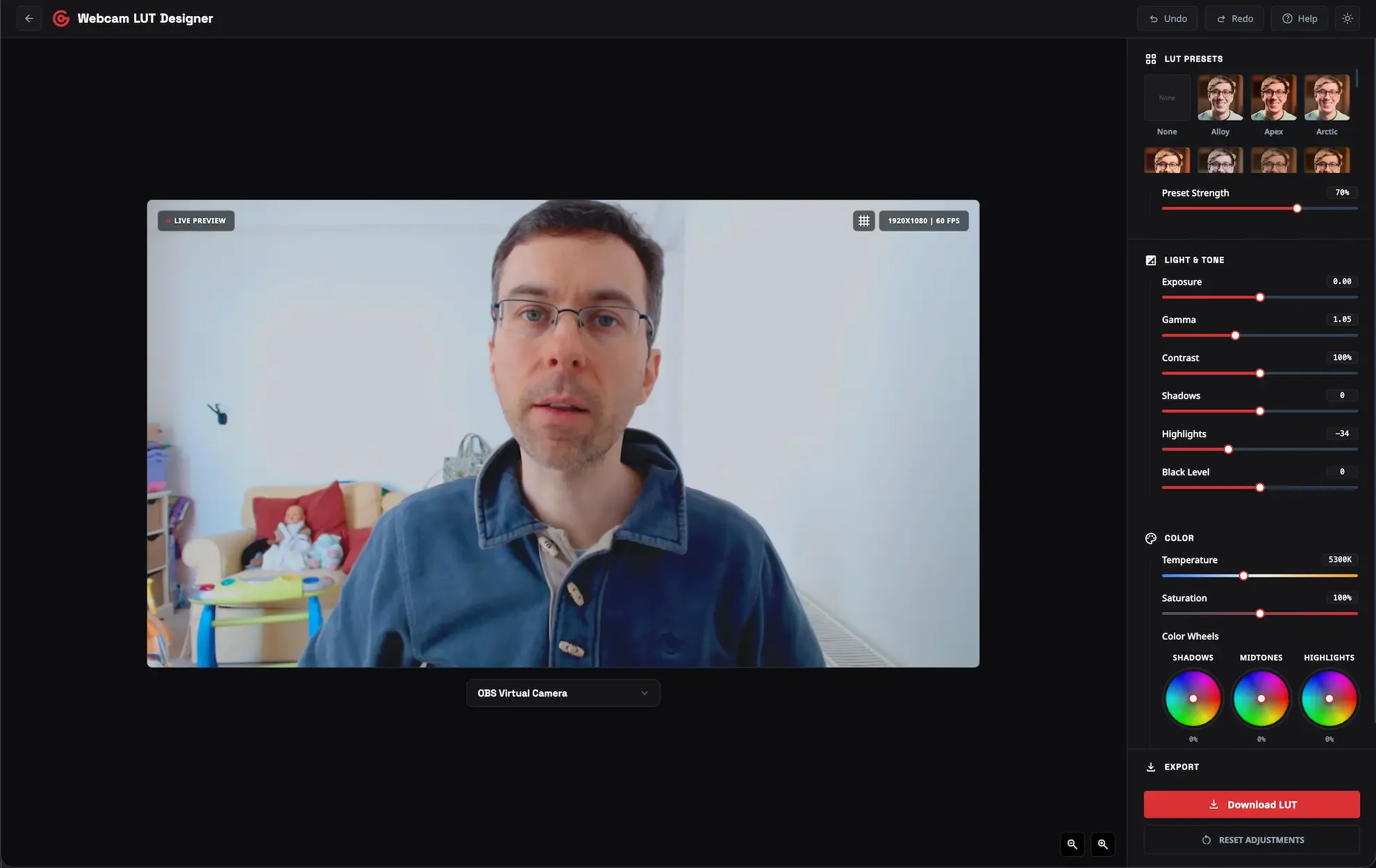
Preview of the Webcam LUT Designer
videocam Live webcam preview with real-time grading
tune Fine control over exposure, contrast, wheels, and presets
download Exports ready for OBS, Streamlabs, Premiere Pro, and Resolve
LIVE PREVIEW
-- x -- | -- FPS
videocam_off

Webcam Access Required

Please allow camera access in your browser to start creating your LUT.
expand_more
help

Help & Guides

rocket_launch

Getting Started

This tool lets you create and preview custom LUTs (Look-Up Tables) for your webcam in real-time. LUTs are color grading filters that transform your camera's colors and tones instantly.

How it works:

  1. Enable your webcam to see a live preview
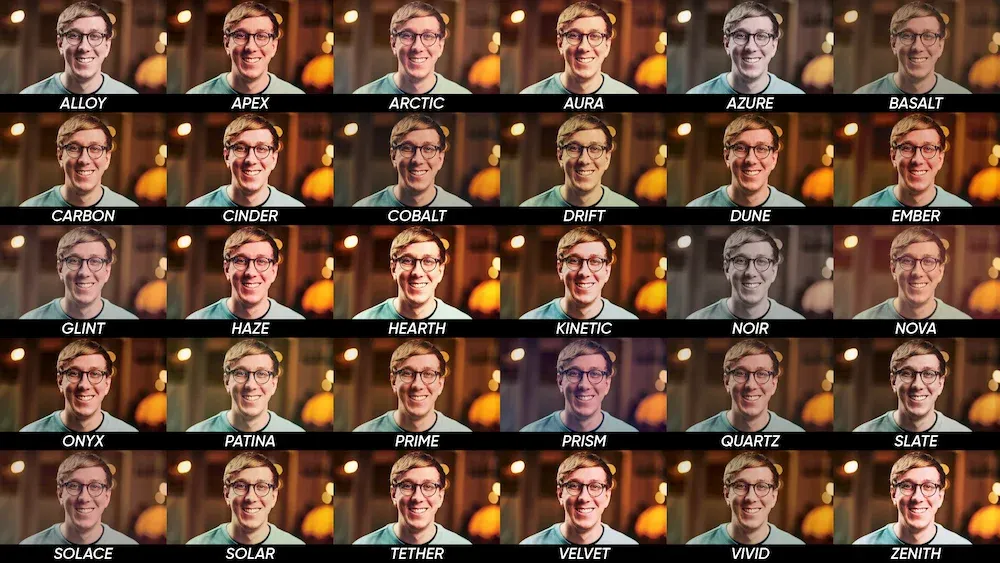
  2. Choose a preset LUT or start from scratch
  3. Adjust exposure, color, and tone controls
  4. Export your custom LUT for use in streaming software

All changes are applied in real-time, so you can see exactly how your stream will look.

keyboard

Undo & Redo

Made a mistake? You can undo and redo your adjustments using the buttons in the top navigation bar or keyboard shortcuts:

Shortcuts on this device:

  • Undo: Ctrl+Z
  • Redo: Ctrl+Shift+Z or Ctrl+Y
videocam

Importing LUTs into OBS

Follow these steps to use your exported LUT in OBS Studio:

  1. Export your LUT as a PNG file (default format for OBS)
  2. In OBS, right-click your webcam source
  3. Select Filters from the menu
  4. Click the + button under "Effect Filters"
  5. Choose "Apply LUT" from the list
  6. Click Browse and select your exported PNG file (.png)
  7. Adjust the "Amount" slider if needed (100% for full effect)
light_mode

Recommended Camera Settings

Get the best results from your webcam with these tips:

Lighting:

  • Use soft, diffused lighting in front of you (avoid harsh overhead lights)
  • Position a key light at 45 degrees to your face
  • Add a fill light on the opposite side to reduce shadows
  • Use a backlight to separate yourself from the background

Camera Position:

  • Place camera at eye level or slightly above
  • Position yourself 2-3 feet from the camera
  • Use the grid overlay (toggle button) for composition

Webcam Settings:

  • Disable auto-focus if your position is fixed
  • Lower exposure compensation in bright rooms
  • Adjust white balance to match your lighting (or use the Temperature slider)
  • Use the highest resolution your webcam supports
download

Export Formats Explained

Choose the right format for your software:

PNG (.png) - OBS / Streamlabs

  • Use for: OBS Studio, Streamlabs Desktop, Meld Studio
  • File size: ~800KB (512x512 image)
  • Compatibility: Works with most streaming software
  • Best for: Live streaming and real-time applications

CUBE (.cube) - Premiere / Resolve

  • Use for: Adobe Premiere Pro, DaVinci Resolve, Final Cut Pro
  • File size: ~1.3MB (text-based format)
  • Compatibility: Industry-standard for video editing
  • Best for: Post-production and video editing workflows
support_agent

Need More Help?

If you have questions about the LUT Designer or need help troubleshooting, get in touch.

Visit our contact page