Upgrade Your Stream: 30 Free Webcam Filters for Twitch Streamers
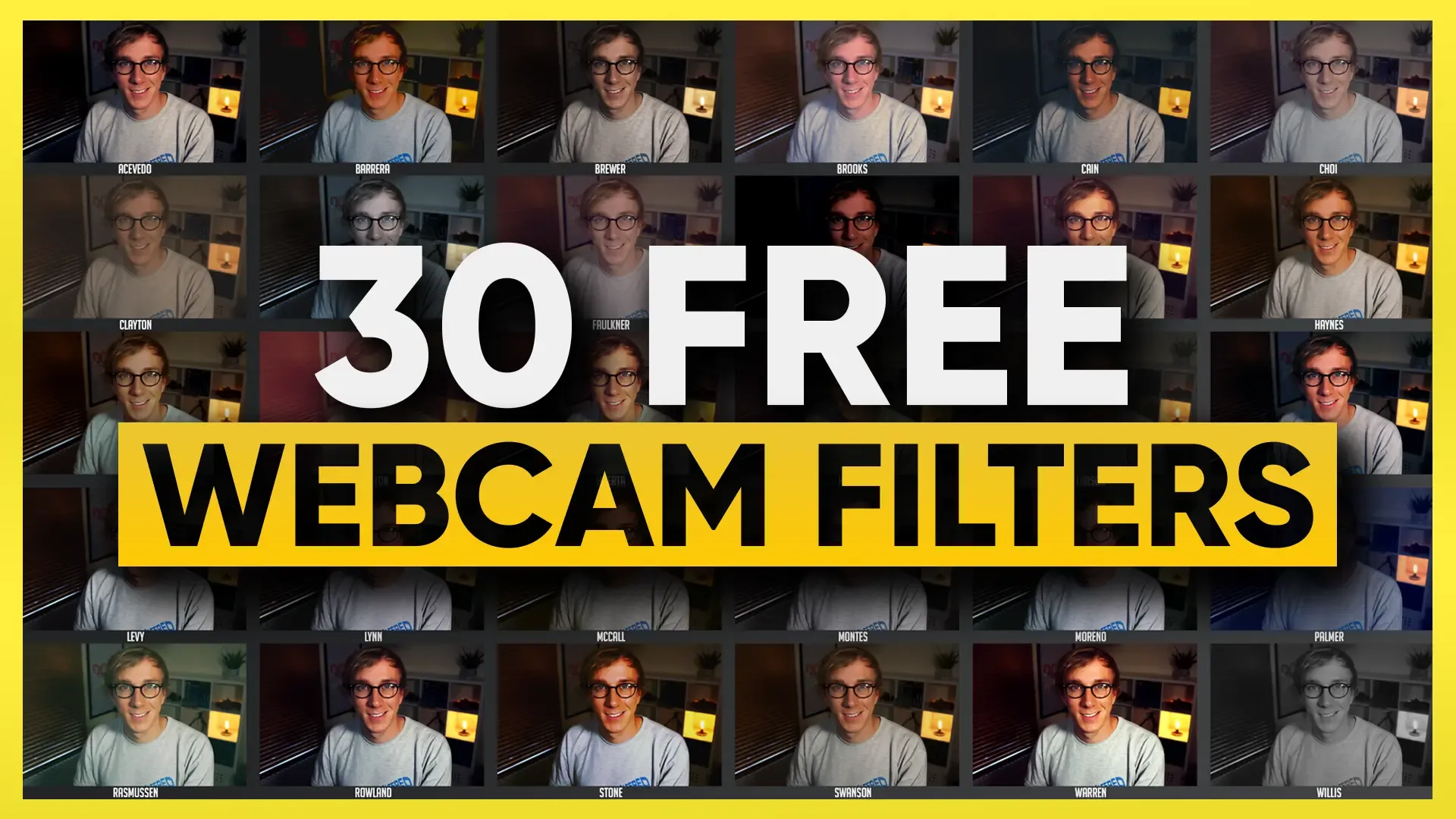
Get the original 30 free webcam LUTs for OBS, then preview, tweak, and export them through the Gaming Careers LUT Designer.
As a Twitch streamer, you know that presentation is everything. While your content and personality are the core of your channel, the visual experience you provide for your viewers is especially important when a new viewer arrives at your stream. That’s where webcam filters come in.
Simply applying a filter or LUT (Look-Up Table) to your webcam lets you take your stream to the next level and give it a professional touch. In this guide, we’ll walk you through applying any of our 30 free webcam filters in your streaming software. So, let’s dive in and enhance that camera!
What is a Webcam LUT?
A LUT, or Look-Up Table, is a file that contains a set of color-grading instructions that can be applied to any image or video footage. It acts as a color filter that changes the colors and tones of an image or video to create a certain look or style.
In the context of webcam filters for Twitch streamers, LUTs are used to adjust the colors and brightness levels of the webcam feed to enhance the visual experience for viewers. LUTs can be applied directly within streaming software like OBS Studio or Streamlabs Desktop, making them a simple and free way to improve the quality of a stream without the need for expensive equipment.
Your lighting and choice of webcam will still have the biggest impact on picture quality, but using the right LUT can still have a dramatic effect on your overall presentation.
How to Get the Free LUT Pack
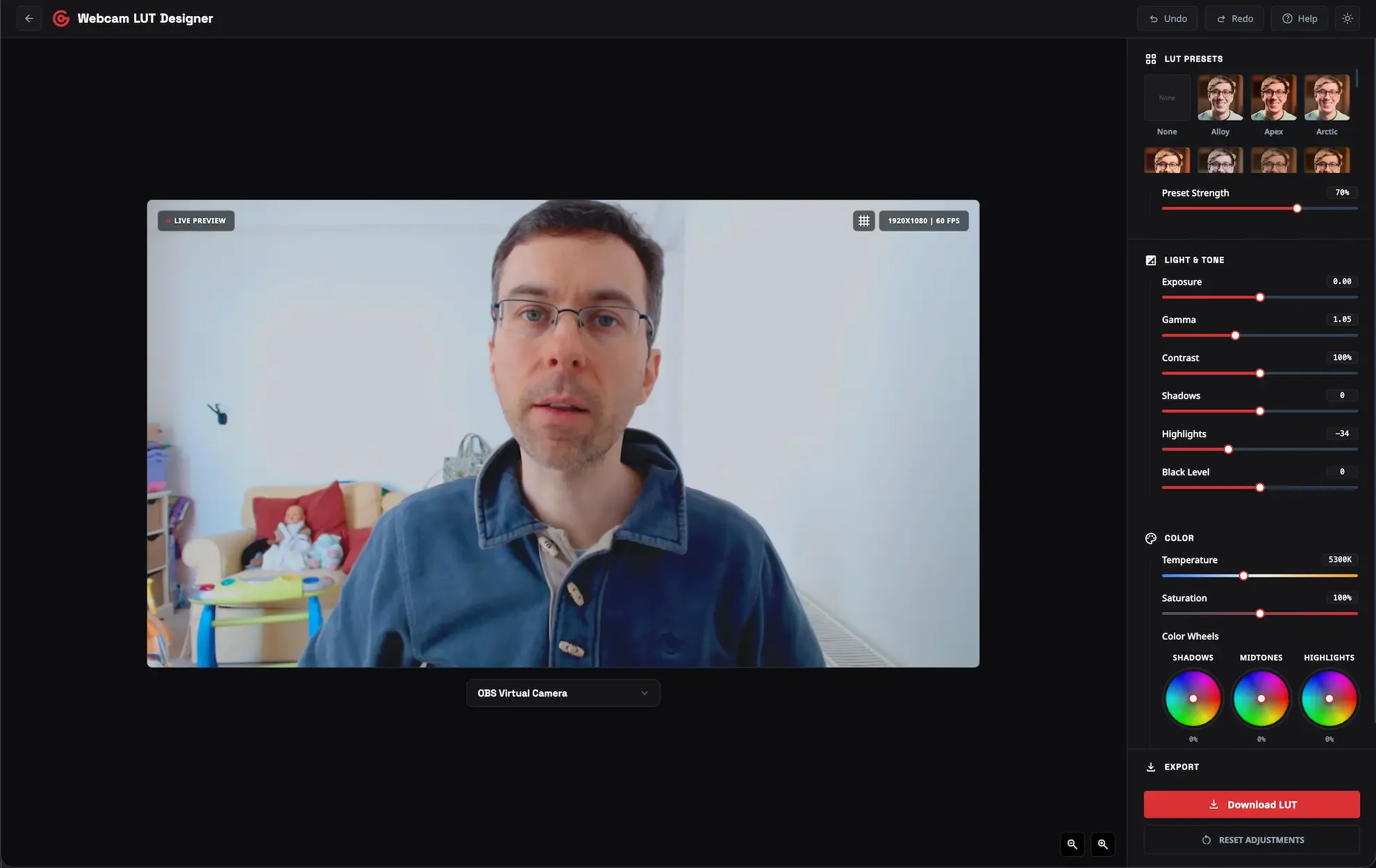
- Open the Webcam LUT Designer.
- Enable your webcam so you can preview the LUTs live.
- Choose one of the included presets or build your own look from scratch.
- When you export, keep the free LUT pack option enabled if you want the full 30 LUT filter pack.
- Once downloaded you’ll need to
unzipthe files.
How to Add a Webcam LUT in OBS
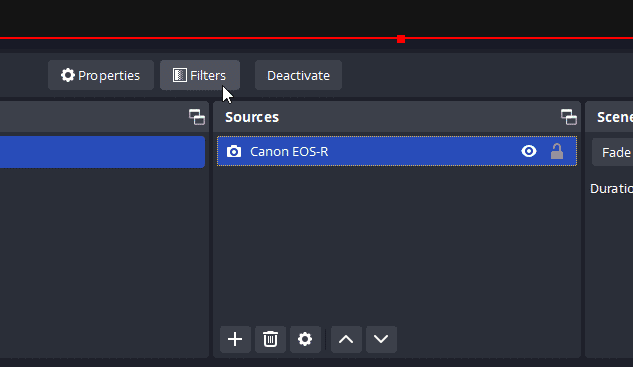
- In OBS, select your webcam source and open
Filters. - Under
Effect Filters, click the+button and chooseApply LUT. - Browse to the LUT file you exported or one of the LUTs from the free pack.
- Use the
Amountslider to reduce the effect if the LUT looks too strong.
Why I Built the LUT Designer
I originally created this free LUT pack to help streamers improve their webcam quality quickly. But over time, I realized most people do not just want a folder full of LUT files, they want a look that actually suits their own camera, lighting, skin tone, and stream setup.
That is why I built the LUT Designer.
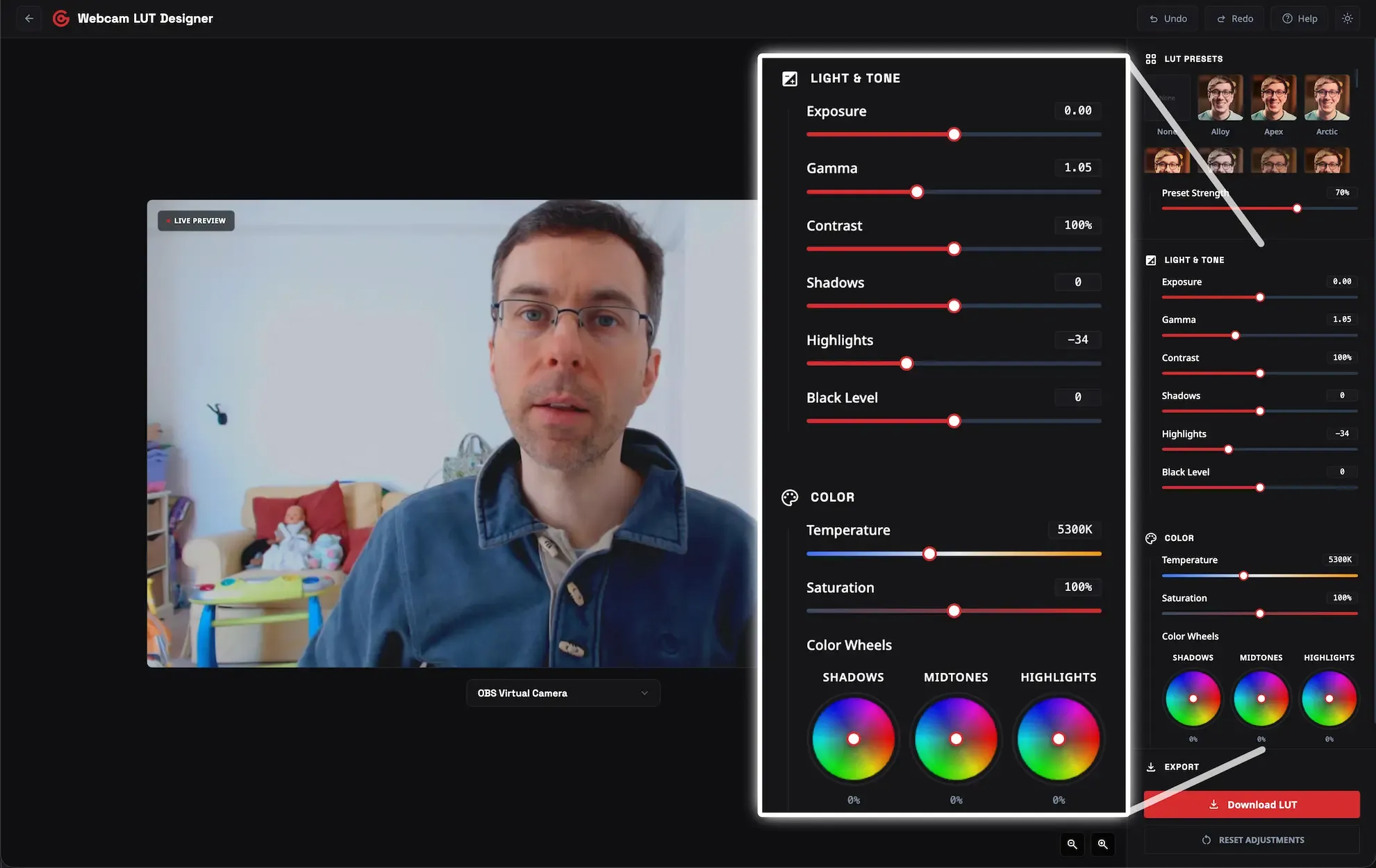
It gives you a way to preview LUTs on your own webcam, start with one of my 30 free presets, and then tweak the look until it feels right for your setup. Instead of guessing which LUT might work best, you can dial it in properly and export something that is ready for OBS Studio, Streamlabs Desktop, or even your editing workflow.
You can still unlock the full 30-LUT pack if that is all you want, but the tool gives you a much better chance of finding a look that feels made for you.
Tips for Choosing the Right Webcam LUT
- Start subtle. A LUT should improve your webcam image, not make it look artificial.
- Test your LUT under the same lighting you actually stream with.
- If a preset feels nearly right, adjust it in the LUT Designer rather than forcing it.
- Remember that lighting and camera placement still matter more than any LUT.
Frequently Asked Questions
Can I still get the original 30 free webcam LUT pack?
Yes. The pack still exists. The difference is that it is now unlocked through the LUT Designer export flow instead of a separate embedded form on this page.
Do I have to design my own LUT?
No. You can simply choose one of the included presets, export it, and use it as-is. The customization controls are there if you want them, not because you have to use them.
Does this work with Streamlabs Desktop too?
Yes. The LUT workflow is effectively the same, and the exported LUT files work with Streamlabs Desktop as well as OBS Studio.
Can I use these LUT files in Premiere Pro, DaVinci Resolve, or Final Cut Pro?
Yes. The LUT Designer lets you export in PNG or CUBE format, or both.
For OBS Studio and Streamlabs Desktop, use the PNG LUT format. If you want to use the look in editing software like Premiere Pro, DaVinci Resolve, or Final Cut Pro, export a CUBE LUT instead.
The free LUT pack includes both formats, so you can use the same look across your livestreams and edited videos.
What if the LUT looks too strong?
Reduce the Amount slider inside OBS, or go back into the LUT Designer and export a softer version.
Video Guide
If you would rather follow the original walkthrough, the video below still explains the core idea and the OBS import process. The only major change is that the free pack is now unlocked through the LUT Designer instead of the old embedded form.