Is Stream Deck + Worth the Hype? Our In-Depth Review
The Stream Deck + upgrades Elgato's iconic controller with rotating dials and a swipeable touch strip for granular audio control. It's a massive workflow boost that unlocks Wave Link software, but comes at a premium price for just eight standard buttons.
Elgato Stream Deck +
Tested Nov 2022Quick Verdict
Pros
- Dials provide excellent, fine-tuned control over audio and apps.
- Includes free access to Elgato's powerful Wave Link audio software.
- Touch strip allows easy swiping through unlimited pages of controls.
- Dial stacking lets you map multiple actions to a single knob.
Cons
- Expensive price tag for only eight standard physical LCD buttons.
- Dials are spaced closely, leading to occasional accidental adjacent adjustments.
- Rear cable placement prevents the device from laying completely flat.
If you’re a content creator, then you’ve probably heard of Elgato’s Stream Deck, a device that allows you to control pretty much every aspect of your stream.
But now, Elgato has taken the Stream Deck to the next level with the Stream Deck + (opens in a new tab), combining the best features of the classic Stream Deck with four endlessly rotating dials and a touch screen. This new device is designed to offer even greater control over your audio, lighting, and cameras, and Elgato thinks it’s the ultimate tool for content creators.
In this review, we will take a closer look at Stream Deck + and see if it lives up to the hype.
What is Stream Deck +?
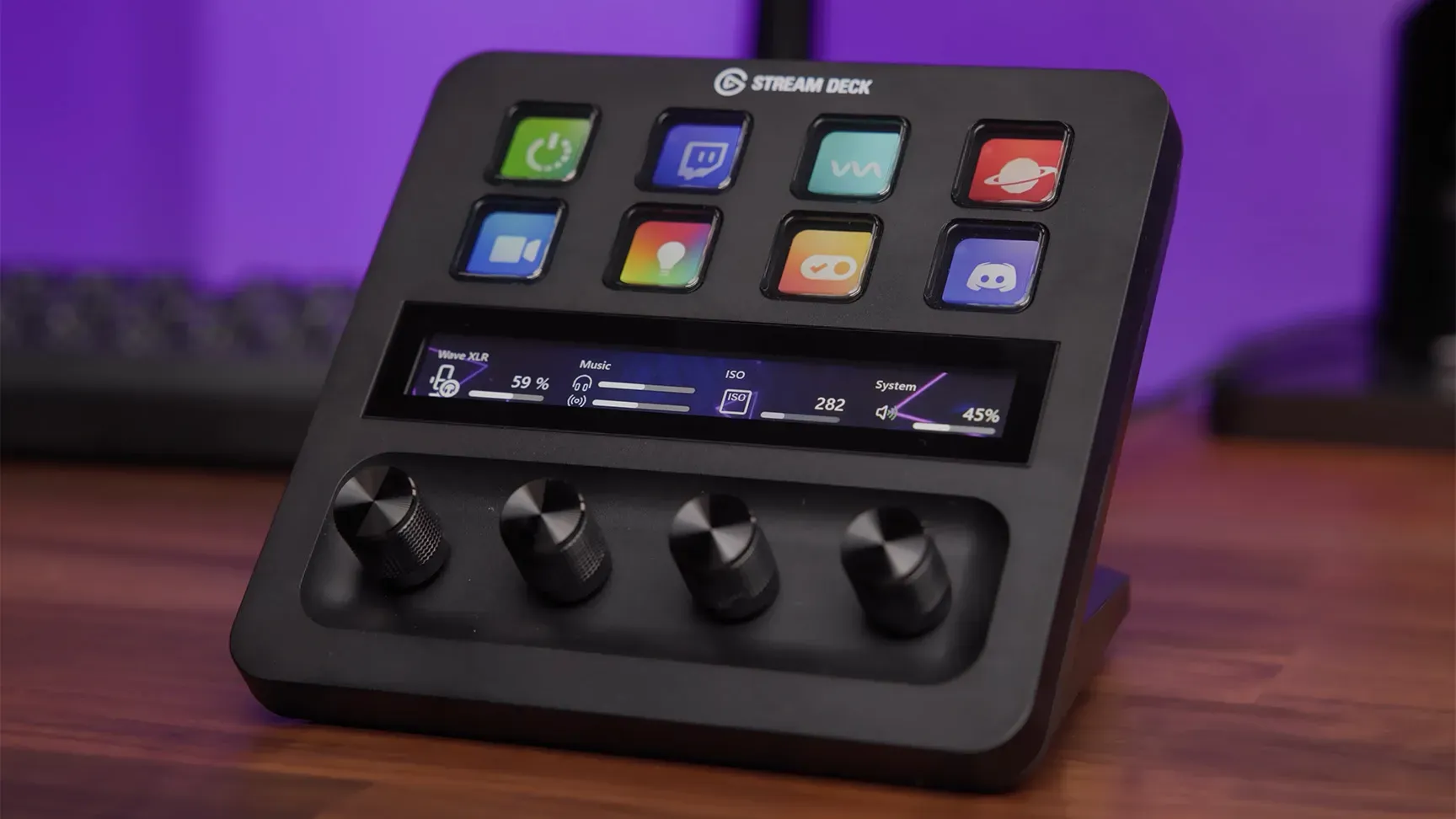
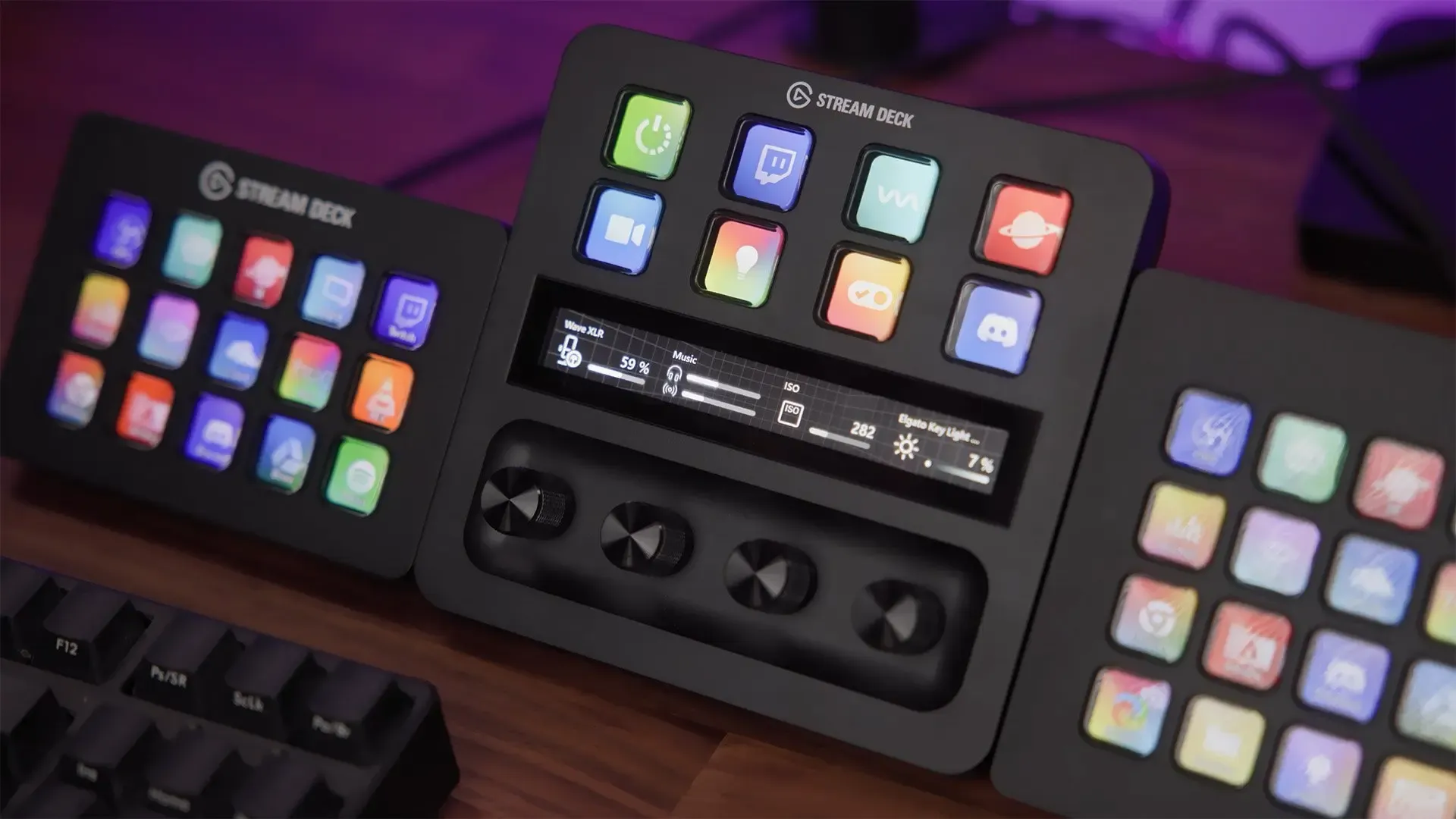
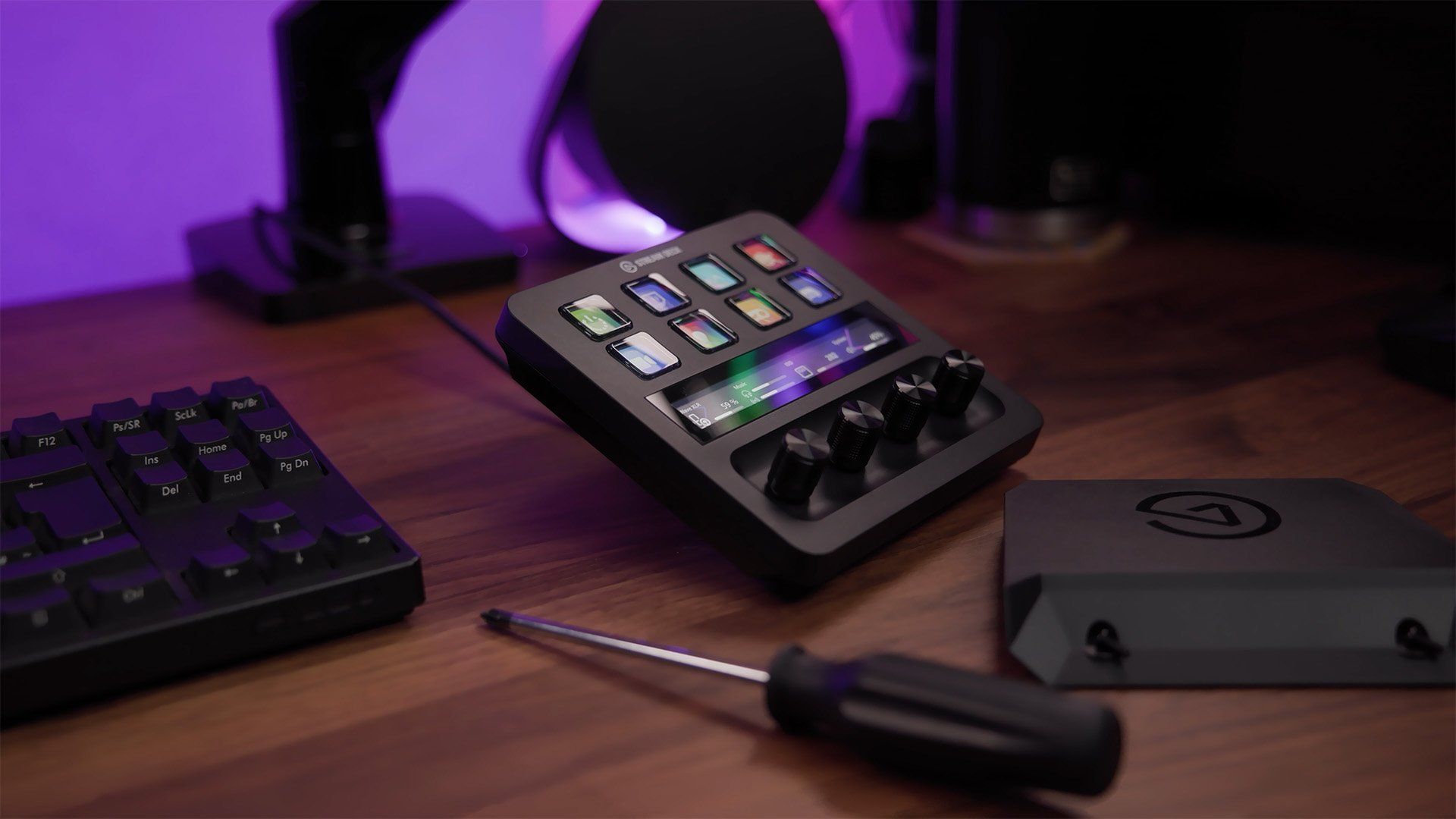
The Stream Deck + features 8 Stream Deck LCD Keys that are both familiar and improved over previous models. These keys are larger and more spaced out than those found on the Stream Deck or Stream Deck XL, making them easier to read and less prone to accidental pressing.
At the bottom of the device, there are 4 endlessly rotating dials that can be clicked in and have tactile bumps for feedback as you turn.
Separating the keys and the dials is a touch-sensitive screen called the Touch Strip. This screen shows information about each of the dials beneath it, but it can also be pressed or swiped for additional functionality.
What can the Dials control?
Elgato has added dial functionality for all of its flagship software at launch. You can configure the dials to adjust various settings, such as:
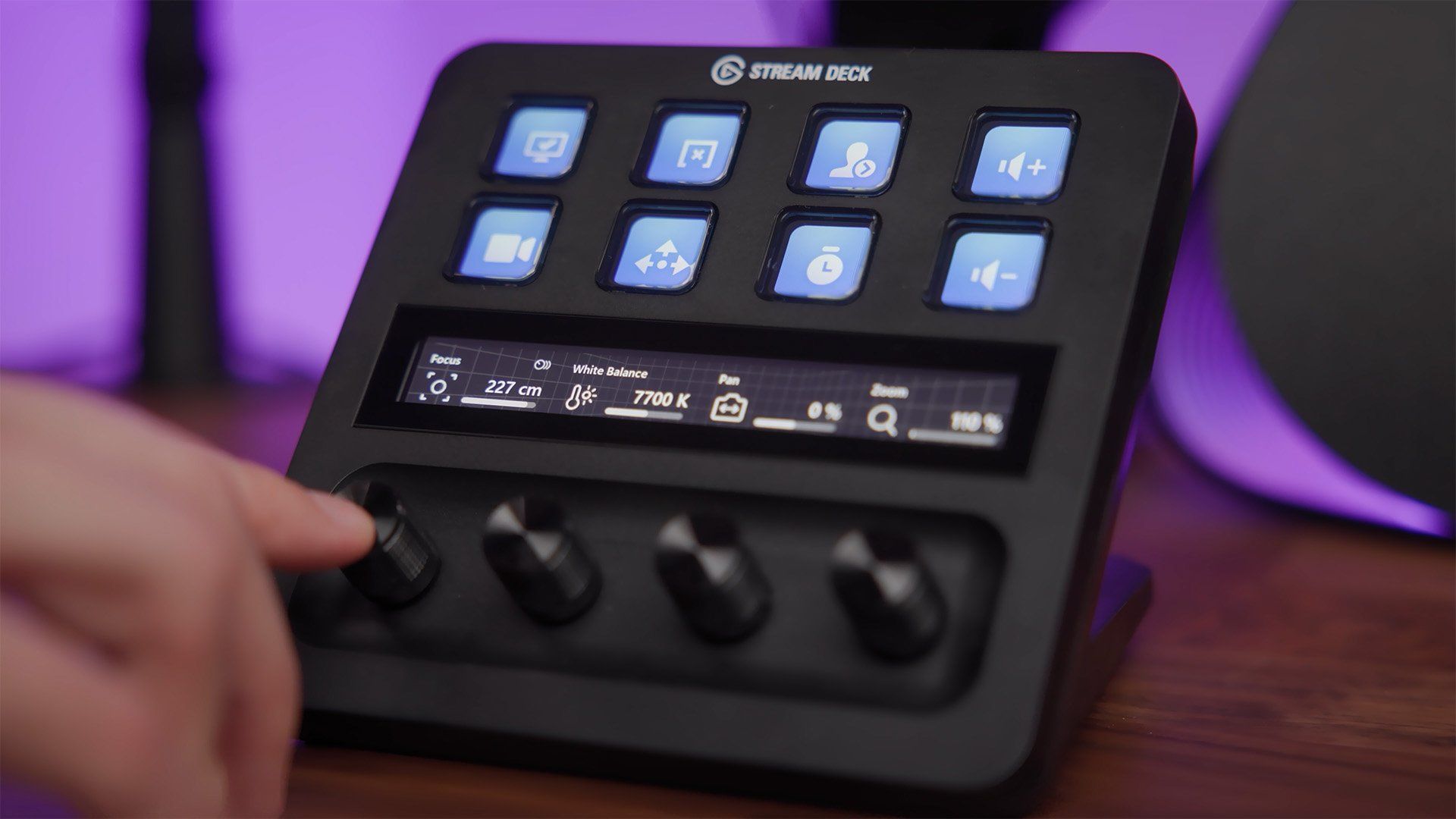
- The ISO, White Balance, or Pan/Tilt/Zoom of your webcam in Camera Hub.
- Lights on and off, as well as their brightness and color temperature in Control Center.
- Mute or adjust levels for any of your audio inputs or outputs in Wave Link.
In addition, they have launched a new plugin through the Stream Deck software called Volume Controller, which lets Windows users control the audio of individual applications. This is a smart feature as you can set a profile that will automatically populate the dials with any apps that are currently playing audio.
Since its launch, many third-party developers have added dial functionality to their Stream Deck plugins, introducing a variety of new and useful features.
Some notable examples include adjusting the volumes (opens in a new tab) of any audio source in OBS Studio, controlling individual volumes (opens in a new tab) of friends on Discord, and changing the brightness and temperature (opens in a new tab) of Philips Hue lights.
Dial Stacking
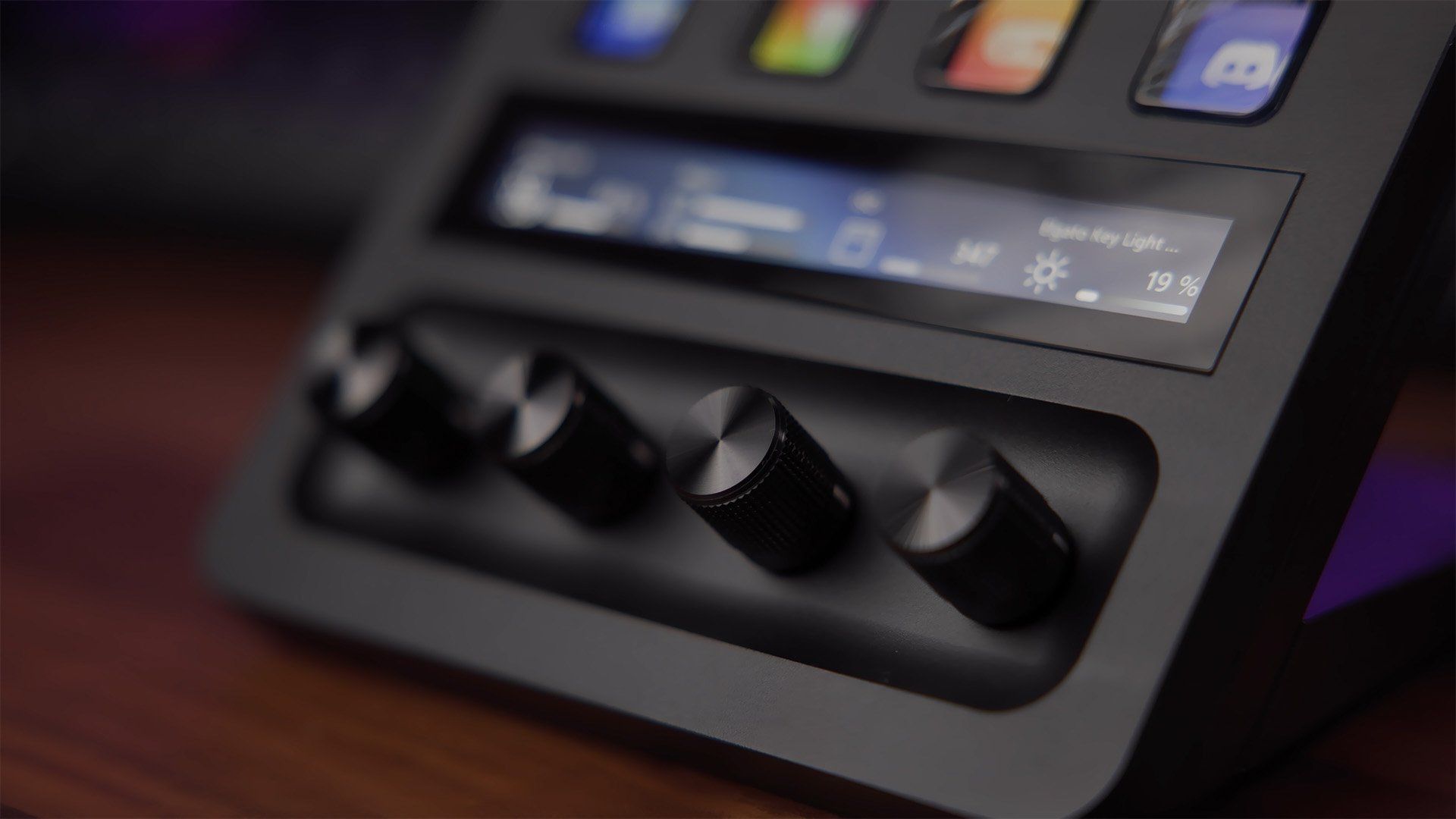
The dials on Stream Deck + can utilize Dial Stacking, which lets you add as many actions as you want to a single dial. You can then cycle between these actions by clicking the dial inwards.
For instance, you can use Dial Stacking to control both your personal monitor mix and the audience’s stream mix on a single dial. By clicking the dial inwards, you can easily switch between the two sets of controls.
Hotkeys
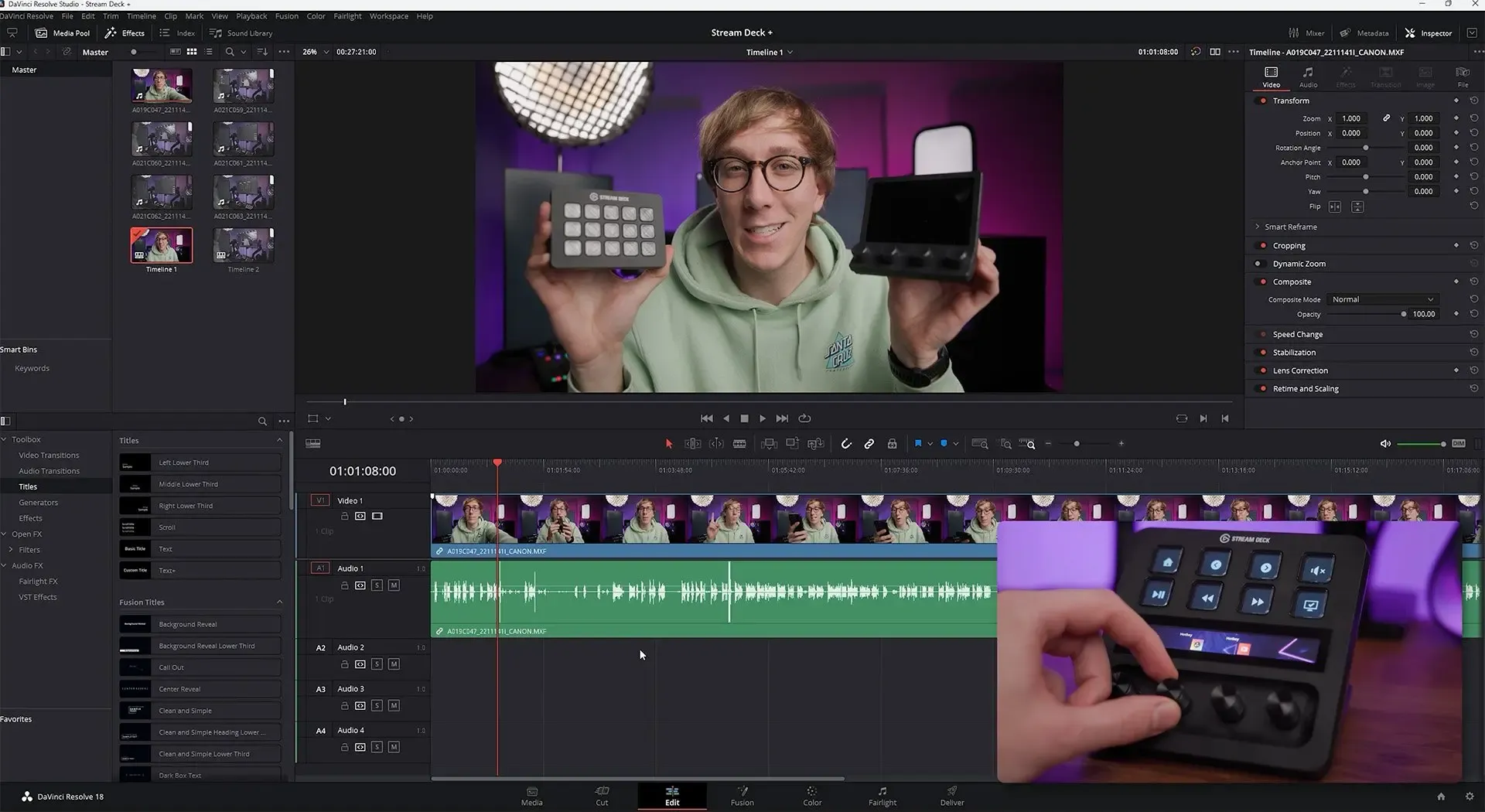
The Stream Deck + dials can also be set up to map both clockwise and anti-clockwise rotation, as well as dial clicks, to specific hotkeys. This feature enables you to control various functions in any app, even if it doesn’t have a Stream Deck plugin built-in.
For instance, you can use the dials to adjust brush size in Photoshop, zoom in and out of timelines or color grading in DaVinci Resolve, or adjust playback speed on YouTube. This means that Stream Deck + can be used to enhance your workflow in a variety of applications beyond just streaming software.
What does the Touch Strip do?
Each of the 4 sections of the Touch Strip can be tapped to trigger an additional action, such as muting an audio source or turning a light on and off.
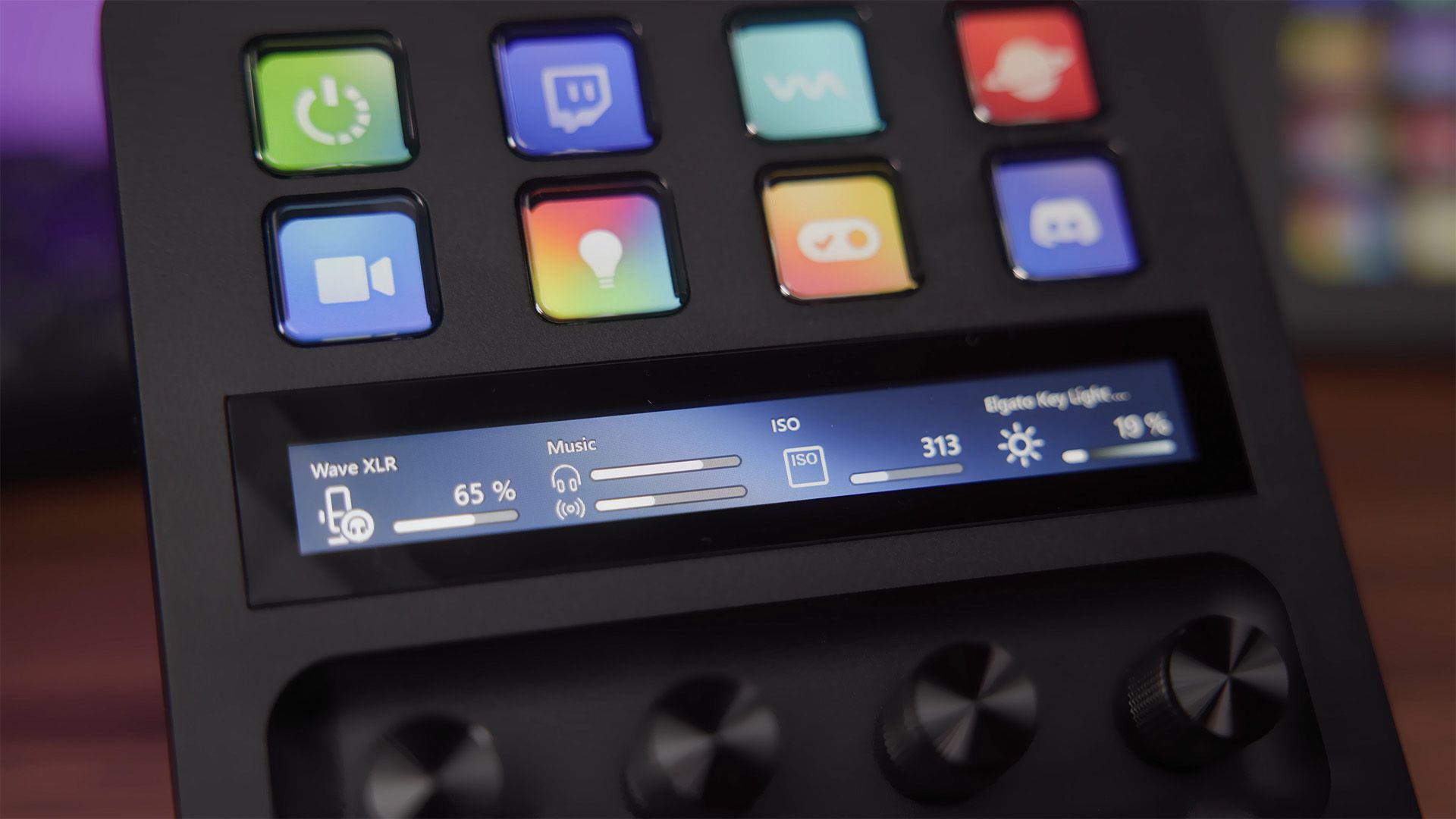
Moreover, swiping left or right on the Touch Strip allows you to navigate through the Stream Deck pages you have set up. This effectively gives you access to as many buttons and dials as you could ever need.
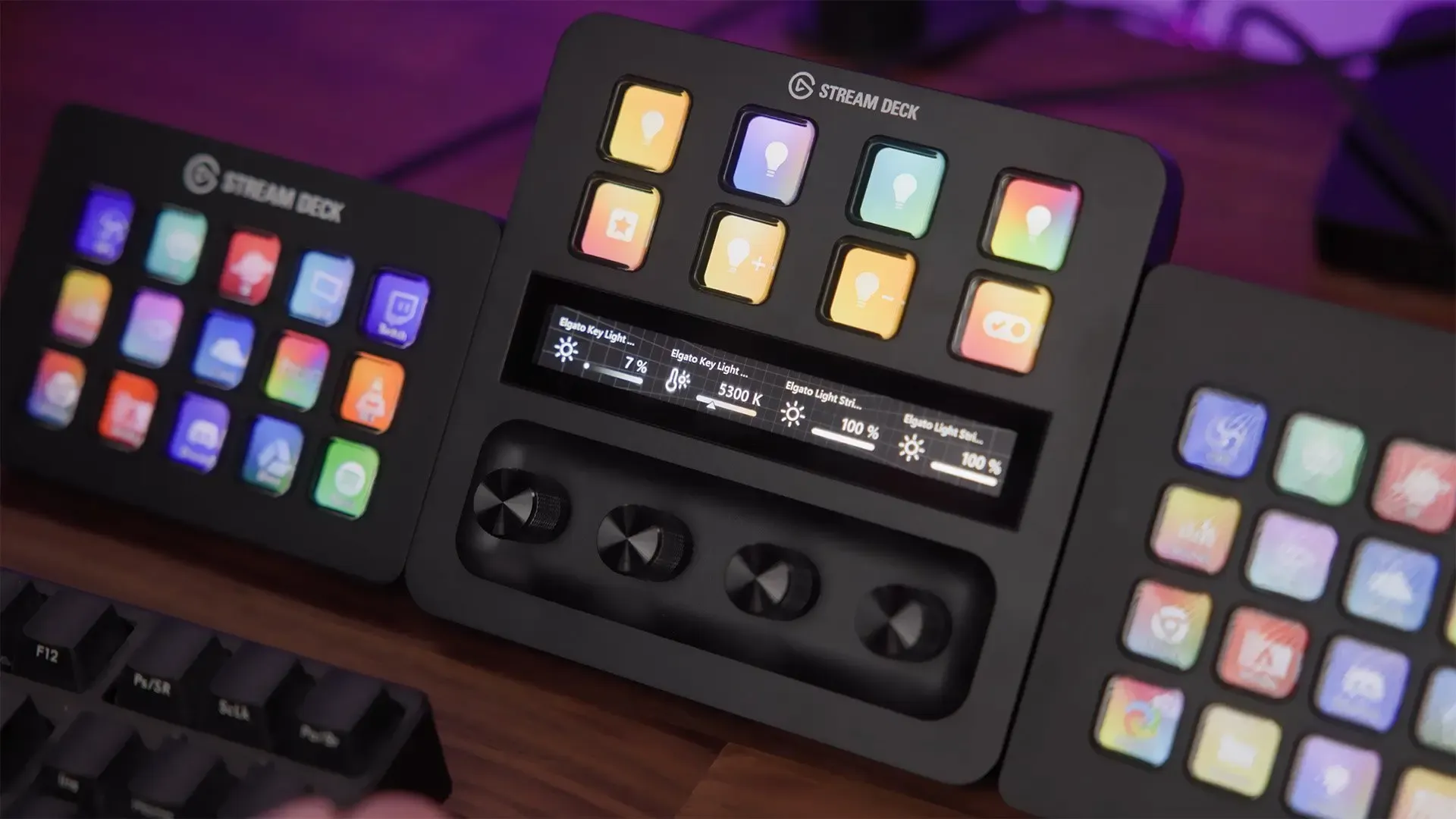
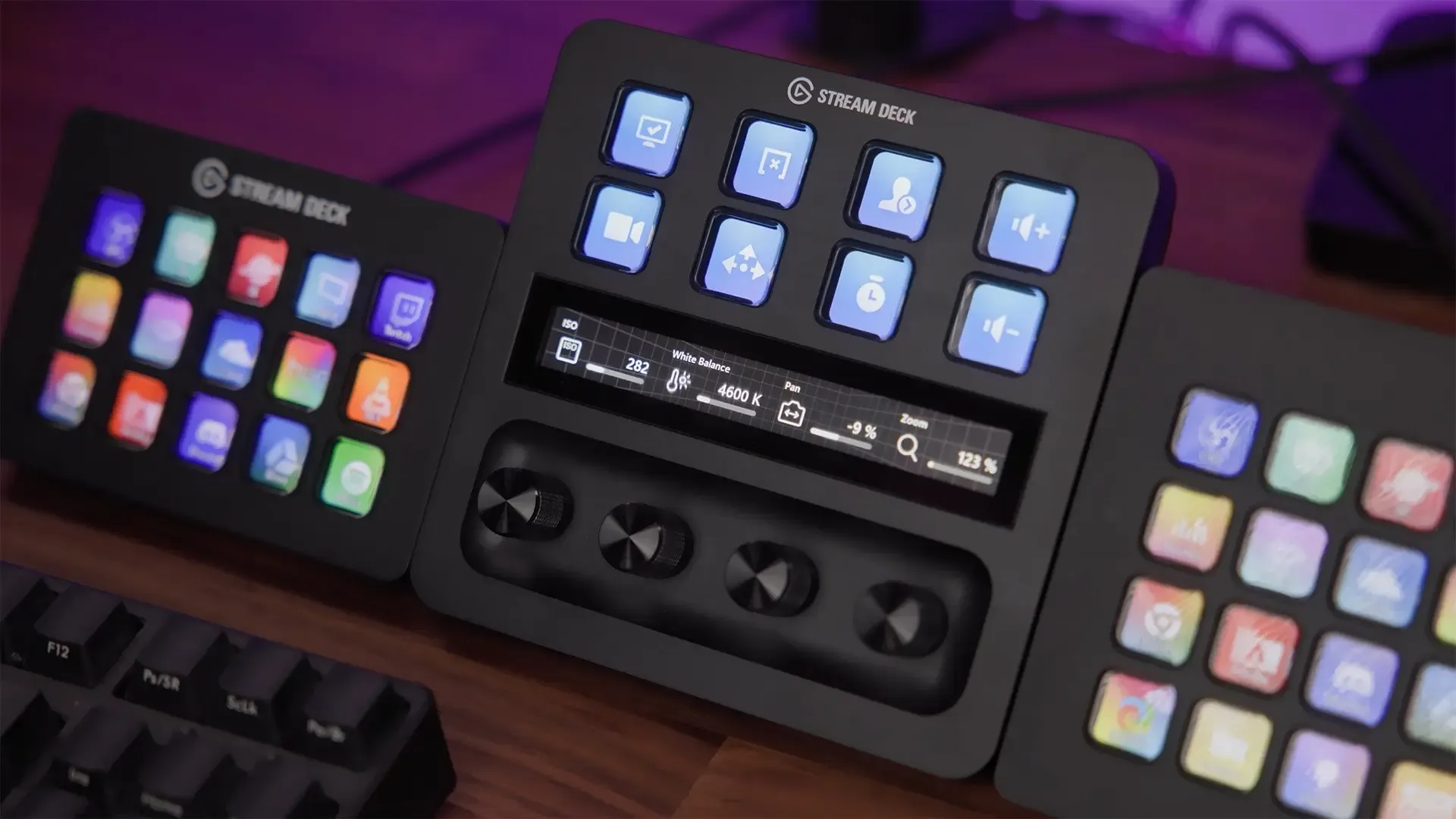
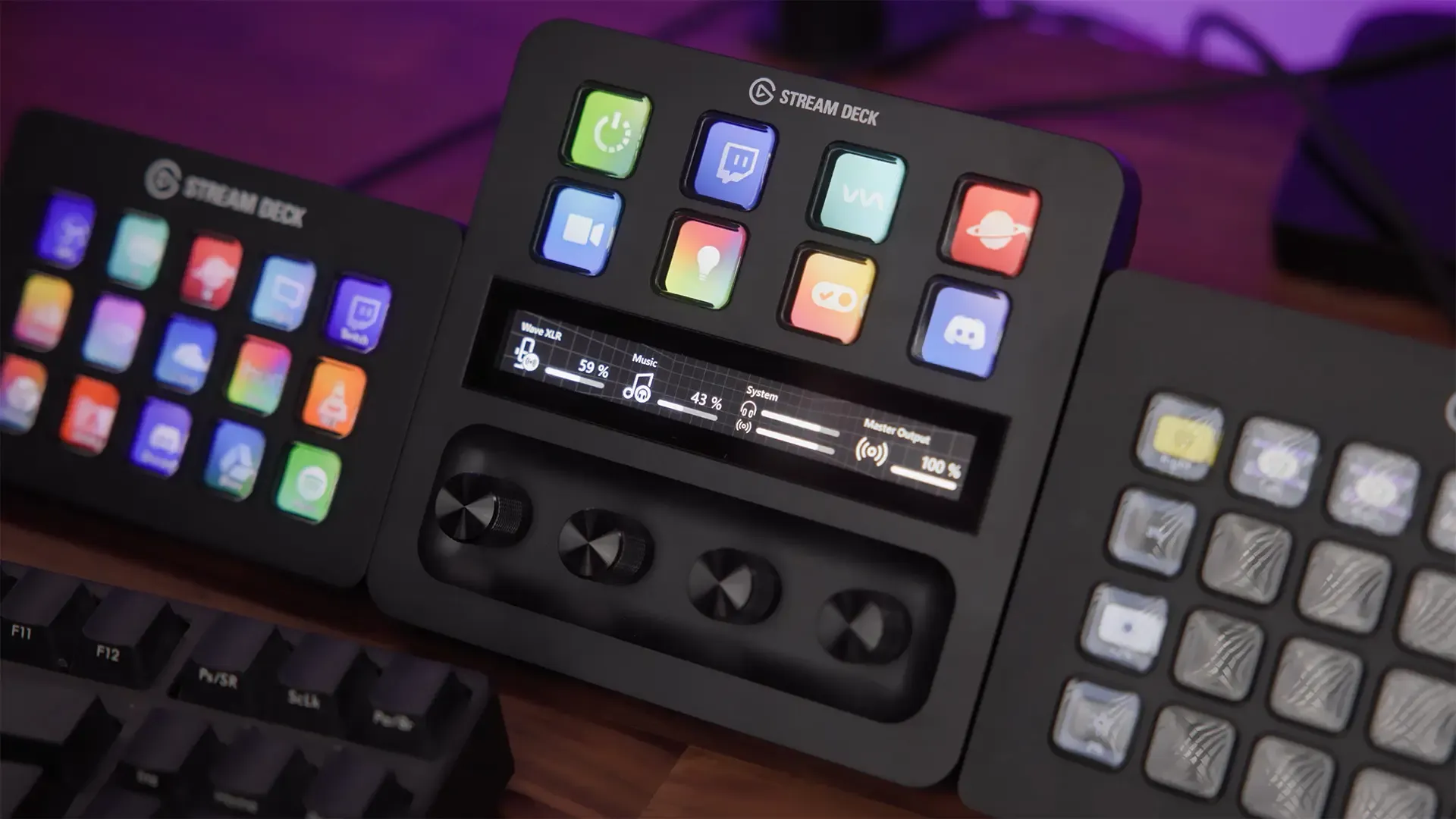
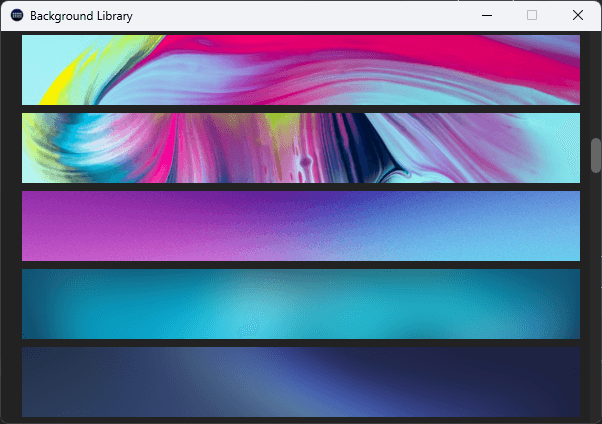
The Touch Strip can also be completely customized with your choice of icons and backgrounds. Elgato has provided a variety of options for you to choose from, or you can create and use your own designs.
This means that you can personalize your Stream Deck + to match your preferences and aesthetics, making it not only a powerful tool but also a stylish addition to your streaming setup.
How to Add Actions to Stream Deck +
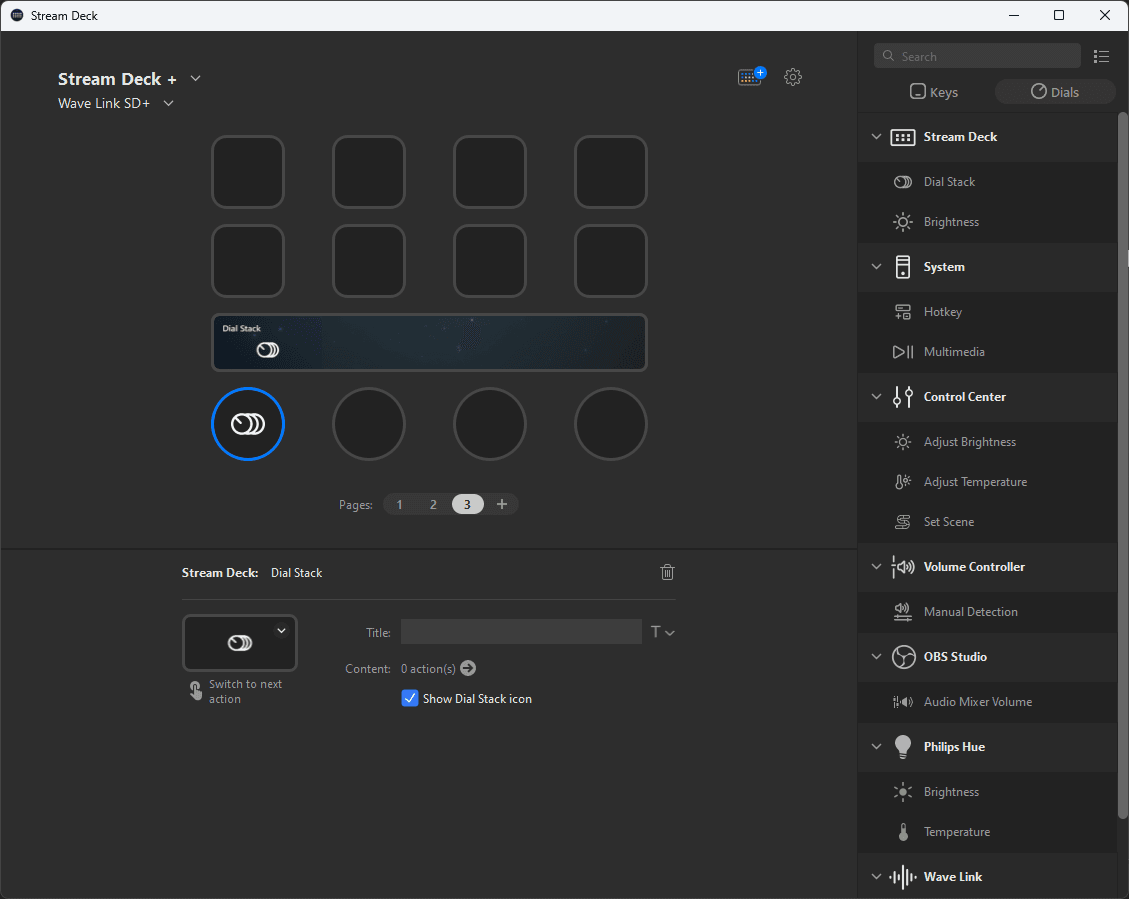
The Stream Deck + drag-and-drop functionality makes adding controls to the dials an incredibly easy process. To add an action to an empty dial, simply drag and drop it into place.
Furthermore, the new dials toggle displays all available dial actions that you can add, making it even simpler to configure Stream Deck + to your liking.
Smart Profile Switching
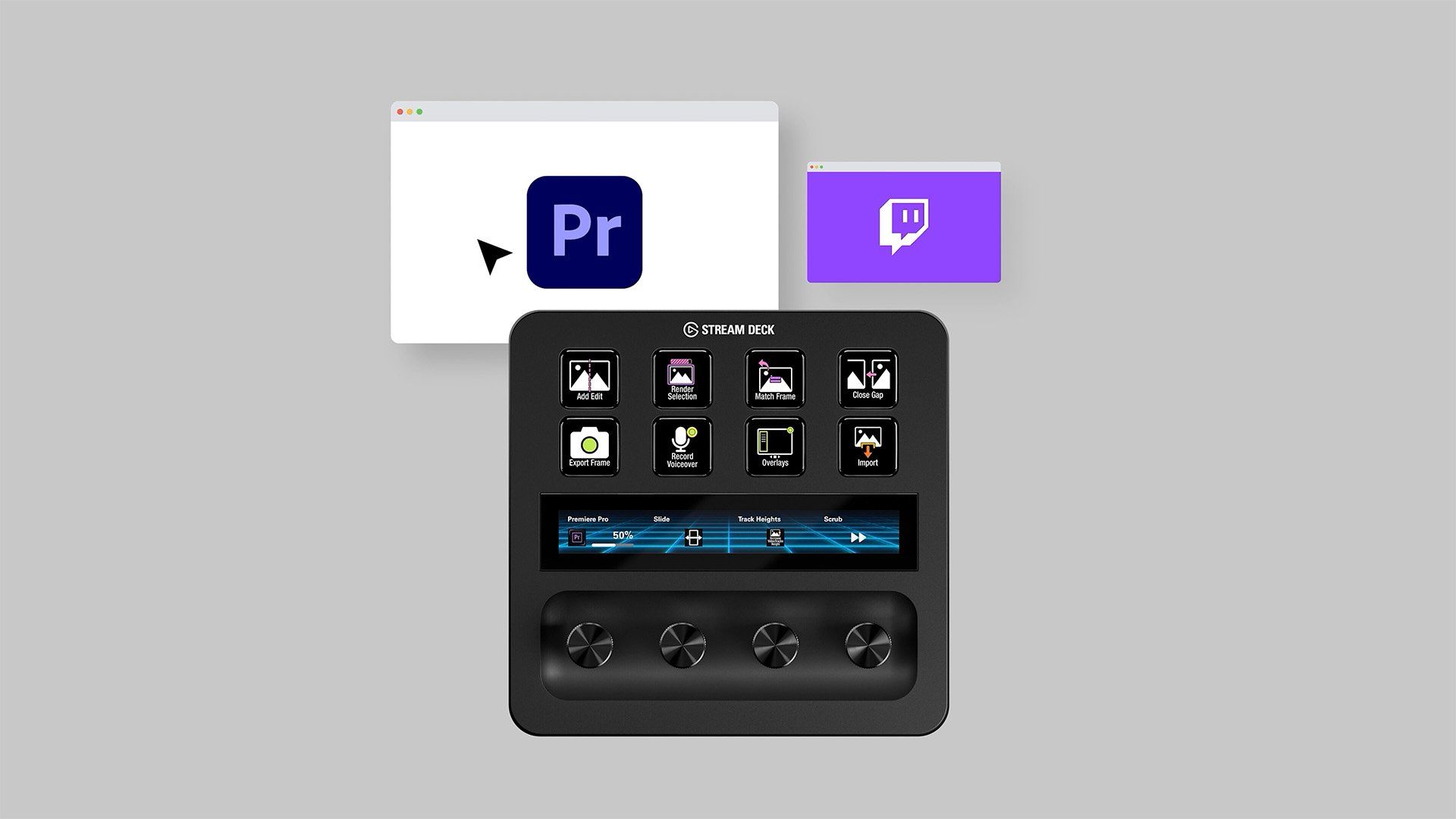
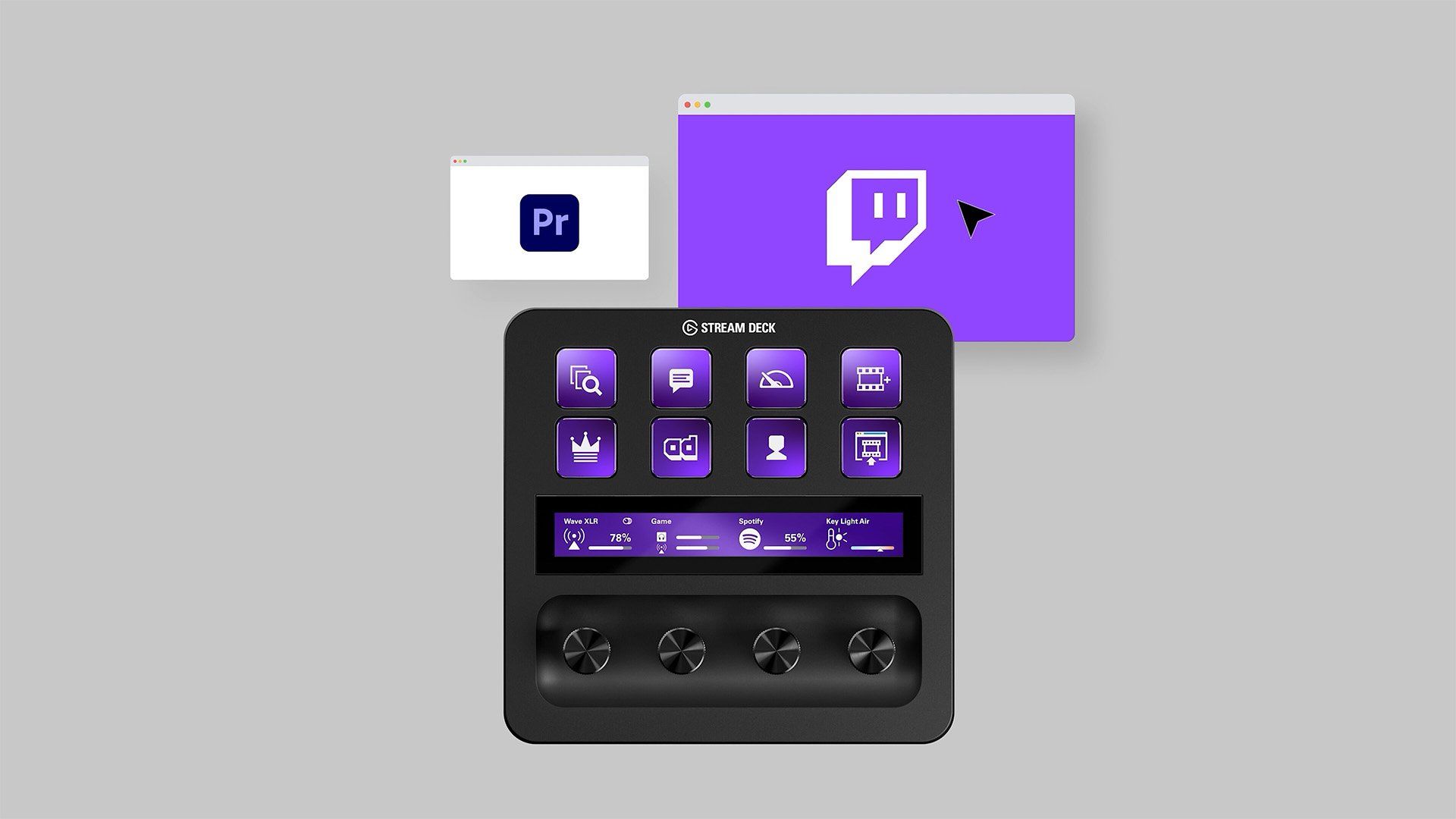
Smart Profile Switching still works as it did with other Stream Decks, but with the added benefit of dials.
This means that if you’re editing in Premiere Pro, Stream Deck + can be set to show one profile of controls. And if you switch to a streaming app like OBS, it can automatically swap to showing all your Twitch controls instead.
Wave Link Functionality
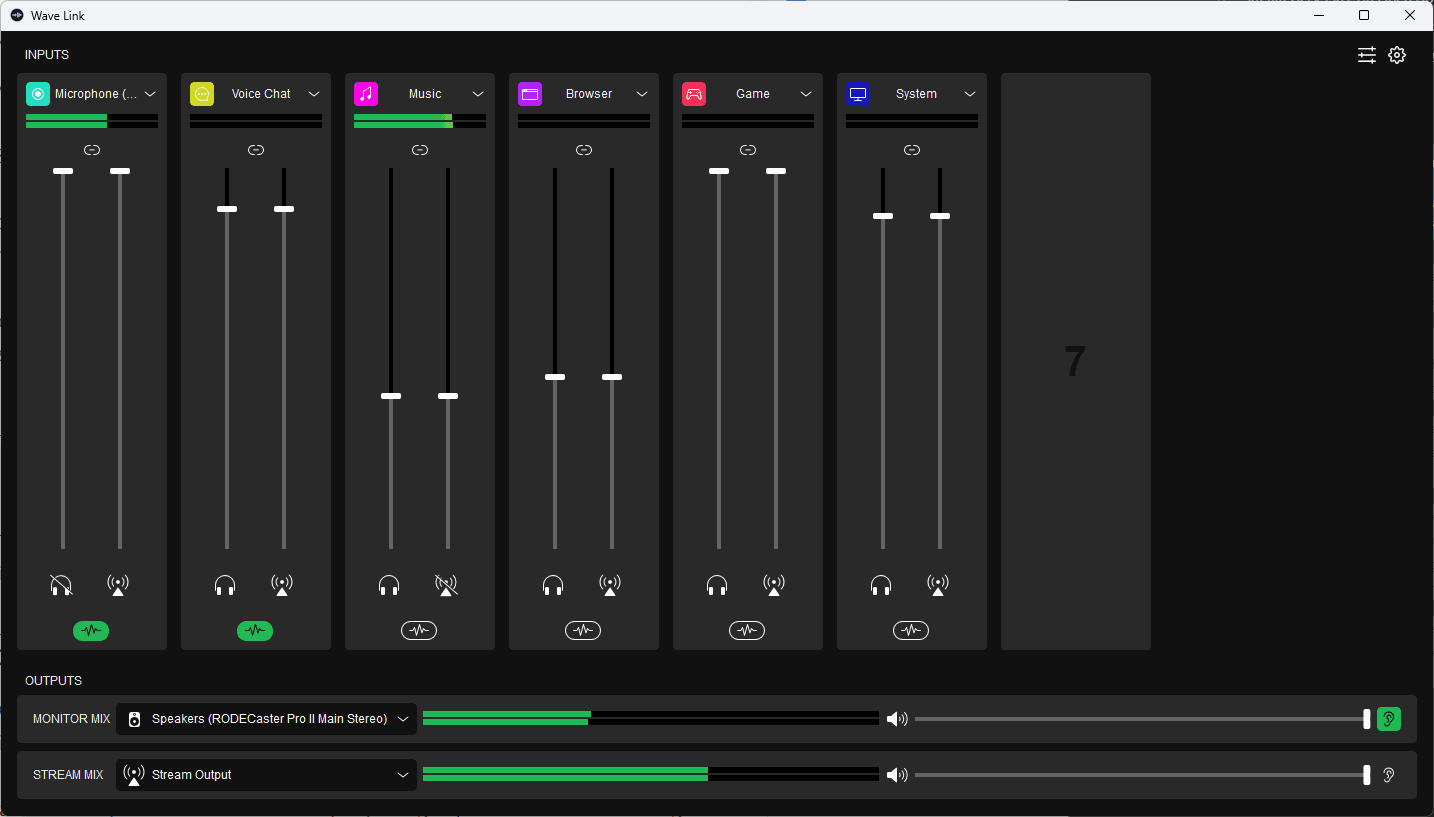
Elgato surprised everyone with the Stream Deck + by unlocking their audio control software, Wave Link, to anyone with the device. This means that you no longer need an Elgato Wave device like Wave:1, Wave:3, Wave DX, or Wave XLR to make use of the excellent Wave Link software.
Now, any microphone, whether it’s USB or XLR, can be used with Wave Link. If you’re using an XLR mic, you can use any interface and still get all of the Wave Link functionality.
This opens up a world of possibilities for controlling all your different audio channels, submixes, custom VST plugins, and easily managing audio in OBS using any microphone with just a Stream Deck +.
Areas for Improvement
While the Stream Deck + is a powerful and versatile tool for content creators and streamers, there are a few areas for improvement to consider.
One issue to be aware of is the potential for accidentally adjusting adjacent knobs when using the dials. Some users may find that the knobs could have been spaced out a bit further to prevent this from happening.
Moreover, the USB-C cable on the Stream Deck + comes out at the top rear of the device, which may not be as aesthetically pleasing as having the cable hidden behind the device like on the Stream Deck and Stream Deck XL. While this may not be a major issue for most users, it’s something to be aware of, especially for those who prioritize clean cable management.
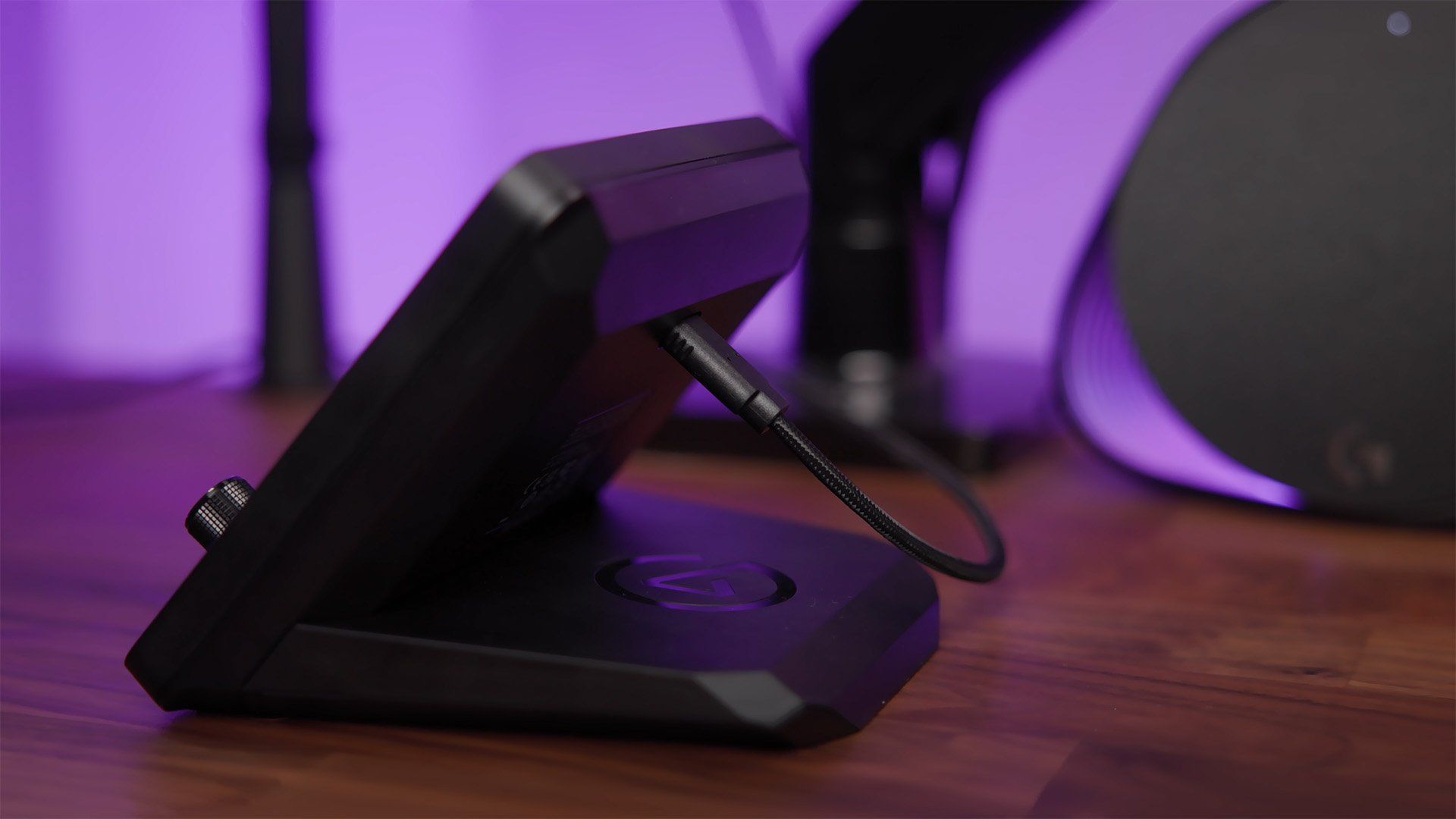
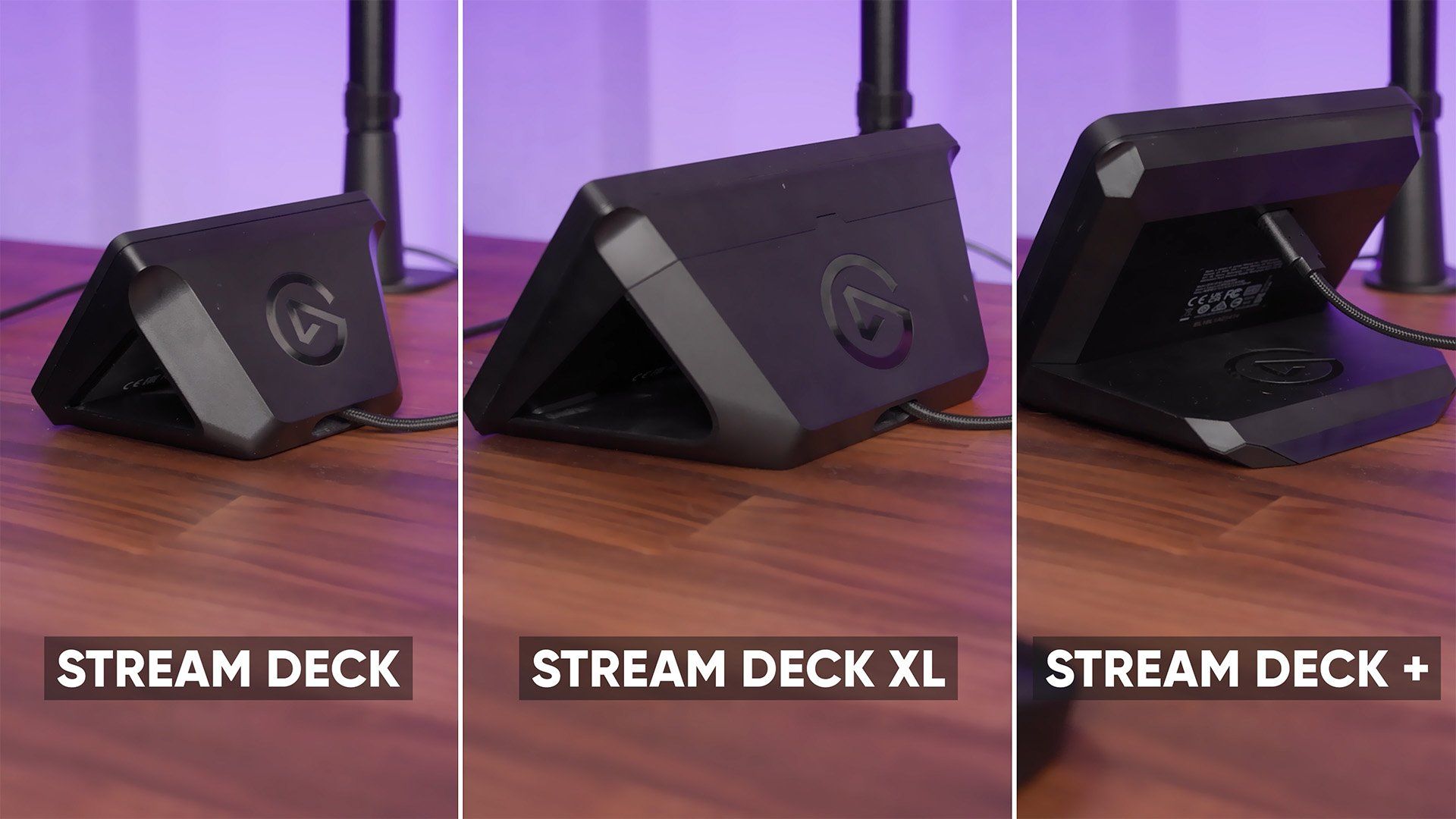
Additionally, although the stand can be removed, the cable positioning means that the Stream Deck + cannot be laid flat, which may be a drawback for some users who prefer this top-down setup.
Building Plugins for the Stream Deck +
The true value of Stream Deck + will become apparent as more third-party developers build useful plugins that can be controlled by the dials. If more developers jump on board, there are countless possibilities for what can be controlled with dials.
Imagine adjusting VST plugins for your audio chain, changing the pitch of your voice, customizing the length of timers for your stream, or adjusting channel point redemptions.
The possibilities are endless, as long as developers decide it’s worth their work. With the potential for third-party developers (opens in a new tab) to create new functionality for Stream Deck +, the device has the potential to become an even more powerful tool for content creators and streamers.
Check out our guide on advanced Stream Deck tips and discover game-changing plugins that have been built for Stream Deck so far.
Summary
The Stream Deck + (opens in a new tab) is a fantastic device that can consolidate multiple devices on your desk. With its endless pages, customizable Touch Strip, Dial Stacking, and Wave Link functionality, it’s the perfect tool for content creators.
While there are some minor issues with the device, the true value of the Stream Deck + will become apparent as third-party developers create new functionalities that can be controlled by the dials.
Overall, Stream Deck + is a must-have device for any content creator looking to streamline their workflow and enhance their productivity. With its powerful features and potential for further development, Stream Deck + is an excellent investment for anyone in the content creation industry.
Video Review
As with all of our reviews, below we have included a video version if you want to see the device in action.
Elgato Stream Deck +
Tested Nov 2022End Verdict
Pros
- Dials provide excellent, fine-tuned control over audio and apps.
- Includes free access to Elgato's powerful Wave Link audio software.
- Touch strip allows easy swiping through unlimited pages of controls.
Cons
- Expensive price tag for only eight standard physical LCD buttons.
- Dials are spaced closely, leading to occasional accidental adjacent adjustments.